
Introduction
Most people have done this at least once. You photograph a receipt, a certificate or a page of notes, and a week later you cannot find it. The file is on your phone somewhere. It is just called IMG20260918114203, and so are two hundred others.
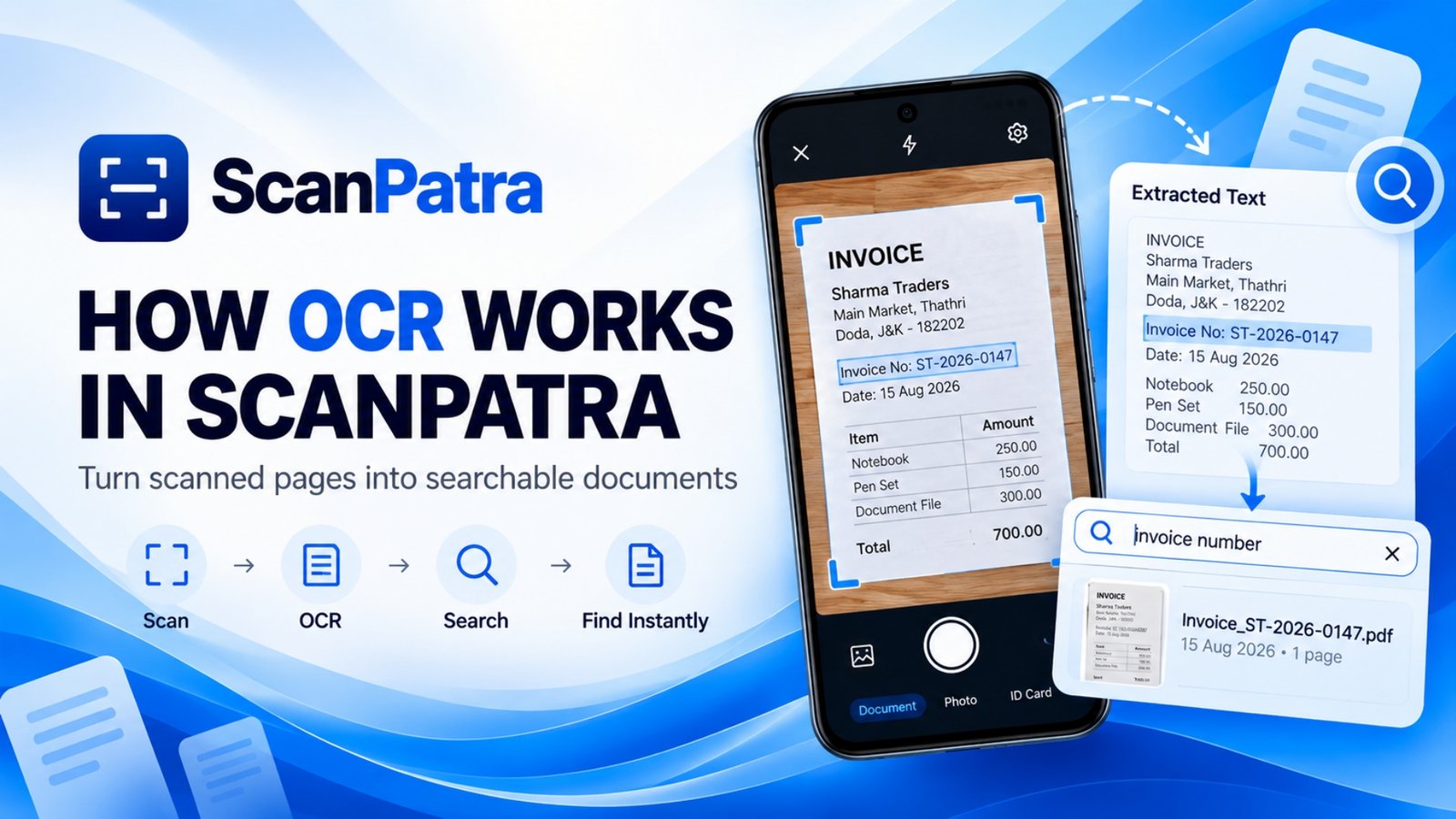
This is the problem OCR solves, and the reason How OCR Works in ScanPatra is worth understanding. A scanned page is only a picture, and no search tool can read it. OCR turns the picture of text into real text that the app can store and search.
The ScanPatra scanner app builds its document handling around three ideas. OCR runs offline on your device. Text is extracted and stored in the background, so you can search inside your documents. And documents are renamed automatically based on what they contain. This guide explains how each works, where OCR still struggles, and what is planned.
If you are still deciding which scanner to use, our Android scanner comparison covers the wider field.
What Is OCR?
OCR stands for Optical Character Recognition. It is the technology that converts an image of text, such as a scan or a photo of a page, into text a computer can work with. This is also called document text extraction.
To a computer, a scanned invoice is a grid of coloured pixels with no meaning attached. OCR decides which shapes are letters, which letters form words, and which words sit on which line.
Most OCR systems follow the same basic sequence:
- Preprocessing. The image is cleaned up. Noise is removed, contrast is adjusted, a tilted page is straightened, and the background is separated from the ink.
- Text detection. The software finds the regions of the image that contain text and separates them from logos, photos, borders and blank space.
- Character recognition. Each character or word is identified. Older systems compared shapes against stored templates. Modern systems use neural networks trained on very large numbers of examples.
- Output and cleanup. The recognised characters are assembled into words and lines, and obvious errors are corrected where possible.
The result is plain text that can be selected, copied or searched, which an image alone can never offer.
Image quality is the biggest factor in OCR accuracy. A sharp, well-lit, flat scan gives the software far more to work with than a blurry photo taken at an angle.
Why OCR Matters
A pile of scanned documents with no OCR is a digital shoebox. You have moved the paper onto your phone, but you still have to open files one by one to find what you need.
It makes documents findable. Instead of remembering what you named a file, you search for something you remember seeing on the page, like a shop name, an invoice number or a person's surname.
It saves retyping. You can copy an account number or a paragraph instead of typing it out and risking a typo.
It keeps large archives manageable. Ten scans are easy to handle by hand. Two thousand are not.
How OCR Works in ScanPatra
ScanPatra is an Android OCR app that treats text extraction as part of scanning itself, not a separate task you run afterwards. The whole OCR process described here happens offline, on your phone. Here is what happens to a page from start to finish.
Step 1: ScanPatra captures the document
You point your camera at the document and capture it. ScanPatra detects the edges of the page, corrects perspective, and supports multi-page scanning, so a ten-page contract can be captured in one session.
Step 2: The scan is cleaned
Before text is read, ScanPatra processes the scan with its image-enhancement tools. These include shadow removal, glare correction and general image enhancement. They exist mainly to make a page look clean and readable, and a cleaner image gives any OCR engine an easier job.
Step 3: OCR extracts the text
ScanPatra's OCR reads the text in the document and turns it into real, machine-readable characters. This runs on the device, so the document does not need to be uploaded to a remote server just to be read.
ScanPatra reports 99.4 percent OCR accuracy on printed text. That is the company's own figure, and it should be read as a reported result, not a guarantee. Actual accuracy varies with print quality, image clarity, fonts, language, handwriting and the condition of the paper. A crisp laser-printed letter and a crumpled thermal receipt are very different tests.
Step 4: The recognised text is stored with the document
The extracted text is saved alongside the document, in the background, as part of the same process. You do not need to press anything to build an index or copy text into another tool. The text simply becomes part of the document's record.
Step 5: The document can be found by its words
Because the recognised text is stored, you can later search for a word or phrase from the document and ScanPatra will show the matching document. The full workflow is:
Scan → OCR → Store recognised text → Search → Find the document
Offline OCR describes the scanning, text extraction and in-app search workflow above. It does not mean every ScanPatra feature works offline. Optional integrations and future features may behave differently.
For a broader look at the app itself, our complete guide to ScanPatra covers its scanning, PDF and organisation tools, and you can explore ScanPatra's scanning features on the app's main page.
OCR-Powered Document Search
Search is where OCR pays off, and it is one of ScanPatra's most important features.
When you scan a document, ScanPatra extracts its text automatically in the background and saves that text with the document. Later, you type a word or phrase that appears in it. ScanPatra searches the stored text and shows you the matching document.
That means you do not need to open every file in turn, remember the original file name, or copy text into a separate index of your own.
An example: finding an invoice months later
Say you scan an invoice from a supplier in March. By September you need it for an accounts query, but you remember only the supplier's name. You search for the business name, or for the invoice number if you have it. ScanPatra finds the document because its recognised text was stored when the scan was processed. The file name, the folder and the date no longer matter.
The same works for a shop name on a receipt, a medicine name on an old prescription, or a phrase from your notes.
In-app search versus searchable PDFs
Two terms are often confused, so it is worth being precise.
In-app OCR search is what ScanPatra provides. It searches the text that was extracted from your documents and stored alongside them, inside the app.
A searchable PDF is a different thing. It is a PDF file with a text layer embedded in it, so that compatible PDF readers can search and select text without any help from the app that made it.
Stored text inside ScanPatra and a text layer inside an exported file are not the same. This article describes the in-app search. Do not assume that an exported file carries an embedded text layer. If it matters for your workflow, open the exported PDF in your reader and try selecting or searching its text.
Automatic Document Renaming
ScanPatra also renames documents automatically, based on their content. Instead of leaving a scan with a generic camera-style name, the app can assign a meaningful one drawn from what the document contains.
In practice, a scan that would have been called something like IMG20260918114203 might instead be named after the business or the type of document it shows. The exact result depends on the document, and not every name will be perfect. Treat it as a useful starting point, not a guarantee of flawless classification.
Renaming and search are two separate features that work together:
- OCR extracts the document's text.
- The app uses that content to give the document a relevant filename.
- The recognised text is also stored for searching.
A good filename helps when you are scanning through a folder. Full-text search helps when you remember a word from inside the document but not its name. Neither replaces the other.
ScanPatra's smart folders and automatic tagging add two more routes back to the same document.
Practical Use Cases
Receipts and invoices
Receipts fade and get lost. Scan them as you go, and the vendor and amounts are in the stored text. At tax time, search for the shop or the invoice number instead of sorting through a folder.
Identity documents
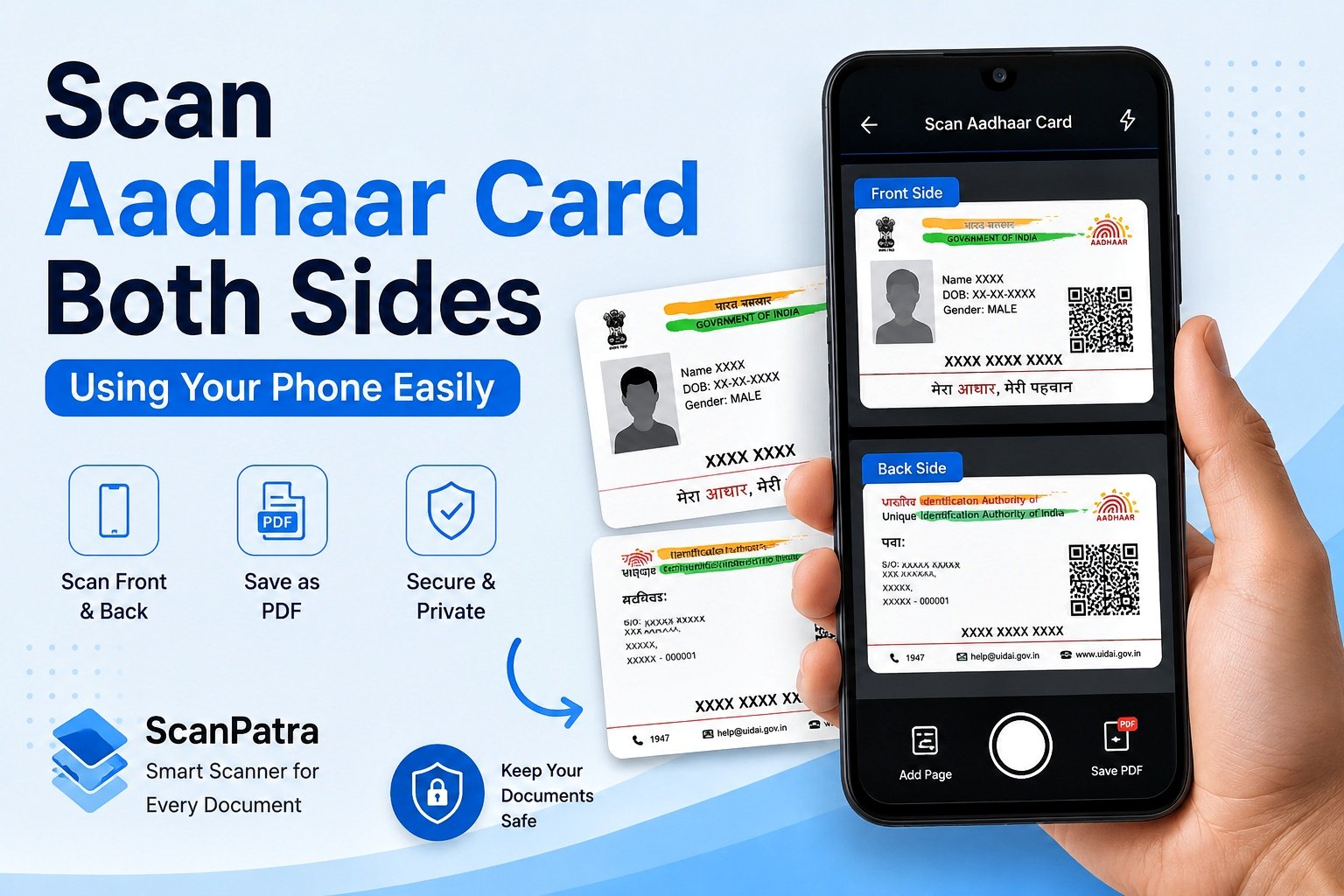
Because OCR runs offline on the device, you can make a searchable copy without sending the image to a server for processing. ScanPatra also offers locked private folders for sensitive files. Our guide to scanning an Aadhaar card on both sides shows how to capture one properly.
Certificates and notes
Degree certificates and licences are scanned once and needed rarely, so search the course or institution name to find the right one. Printed notes and meeting minutes work the same way, especially when clean and legible.
Office records
For contracts, forms and letters, stored text lets you find a document by a clause, a reference number or a party's name without reading each file.
Journalistic documents
Reporters accumulate paper constantly: court documents, official orders, press releases, tender notices and interview notes. Scanning them gives you a searchable record. When a story needs a name or a date from something you scanned months ago, a search is faster than a hunt through folders. Because OCR and search work offline on the device, source material does not need to be uploaded anywhere to become searchable.
Benefits of OCR in ScanPatra
- Private by design. Offline OCR means text extraction does not need an upload to a remote server.
- No extra steps. Text is extracted and stored in the background, so search works without any setup.
- Findable by content. Search for a word or phrase from inside a document.
- Readable names. Automatic renaming gives scans names that reflect their content.
- Tidy archives. Cleaner scans, smart folders and automatic tagging keep documents in order.
- Easy export. Export as PDF, JPG or text, then merge or compress files. Our guides to merging PDFs on Android and compressing PDFs without losing quality explain how.
Challenges of OCR Technology
OCR is useful, but it is not magic. Knowing the limits helps you get better results.
Image quality
Blurry, shadowed or low-contrast images cause missed text and wrong characters. Low resolution loses the fine details that separate similar letters, such as an "l" and a "1". Good light and a steady hand help more than any setting.
Handwriting
Printed text in common fonts is the easy case. Handwriting is much harder because every writer forms letters differently. Neat block capitals are far easier to read than fast cursive, which remains one of the hardest problems in OCR even for modern neural systems. ScanPatra's website lists handwritten notes among its use cases, but results depend heavily on how clear the writing is.
Complex scripts and right-to-left text
Many scripts are harder for software than the Latin alphabet. Urdu is written right to left, and its letters change shape depending on where they sit in a word, joining to their neighbours. Hindi uses Devanagari, where letters hang from a continuous line and combine into conjunct forms. A system built mostly around English text does not carry over to these scripts automatically.
Mixed-language documents
Real documents often mix languages. A government form may carry English headings, Hindi fields and a stamp in Urdu. The OCR engine has to work out which language it is reading, and that is harder than reading a single language from top to bottom.
Future OCR Improvements in ScanPatra
It helps to be clear about what is available today and what is still planned.
Available today
- Offline OCR on the device
- Background text extraction, with the text stored alongside each document
- In-app search of scanned documents by words in their text
- Automatic document renaming based on content
- Shadow removal, glare correction and image enhancement
- Smart folders and automatic tagging
- Multi-page scanning and export to PDF, JPG or text
Planned
ScanPatra intends to improve OCR recognition for:
- Urdu
- Hindi
- Multilingual documents, where more than one language appears on the same page
The harder problems above, including complex scripts, handwriting, low-quality scans and mixed-language pages, are what these improvements are meant to address. No launch date has been announced.
ScanPatra also plans to add translation of recognised text in the future. Translation is a separate capability from OCR. OCR reads the text on the page. Translation converts that text into another language. Better OCR for a language does not automatically mean translation into it, and the reverse is also true.
Everything in the "Planned" list is a goal, not a shipped feature. If your documents are mostly in Urdu or Hindi, test the app on a sample page before relying on it for an important archive.
Frequently Asked Questions
What is OCR in ScanPatra?
OCR, or Optical Character Recognition, is the feature that reads the text in your scanned pages and turns it into real text. In ScanPatra, that text is stored alongside the document so you can search for it later.
Does ScanPatra OCR work offline?
Yes. The OCR process, from capturing the scan to extracting the text and storing it for search, happens offline on your device. No upload to a remote server is needed. This applies to the OCR and search workflow, not to every optional feature in the app.
Can I search scanned documents in ScanPatra?
Yes. ScanPatra extracts text in the background and saves it with the document. You can then search for a word or phrase from the document without opening each file or remembering its name.
Does ScanPatra rename documents automatically?
Yes. ScanPatra assigns relevant file names based on a document's content, instead of leaving generic names. The names are a helpful starting point, but they will not be perfect for every document. Automatic naming and full-text search are separate features that complement each other.
How accurate is ScanPatra's OCR?
ScanPatra reports 99.4 percent OCR accuracy on printed text. Real results vary with print quality, image clarity, fonts, language, handwriting and the condition of the document, so do not treat the figure as a guarantee for every scan.
Does ScanPatra support Urdu and Hindi OCR?
Better Urdu, Hindi and multilingual recognition are planned improvements, not features to assume today. No launch date has been announced. Test a sample page first.
Can ScanPatra translate scanned text?
Not currently. Translation is planned for the future and is not available yet.
Final Thoughts
Scan a page today, and months later you type a word and the right document appears. In ScanPatra, three things make that possible. OCR runs offline on your phone. The recognised text is stored in the background with each document. And automatic renaming gives scans names that mean something. Each does a different job, and together they turn a photo of paper into a record you can actually find.
It is not perfect. Handwriting, complex scripts and mixed-language pages are still hard for every OCR system, and ScanPatra's own improvements for Urdu, Hindi and multilingual documents are plans, not promises of a date. For now, the most useful habit is simple: scan clearly, let OCR do its job in the background, and search by content instead of by file name. To try this workflow yourself, see the document scanner app for Android page.